
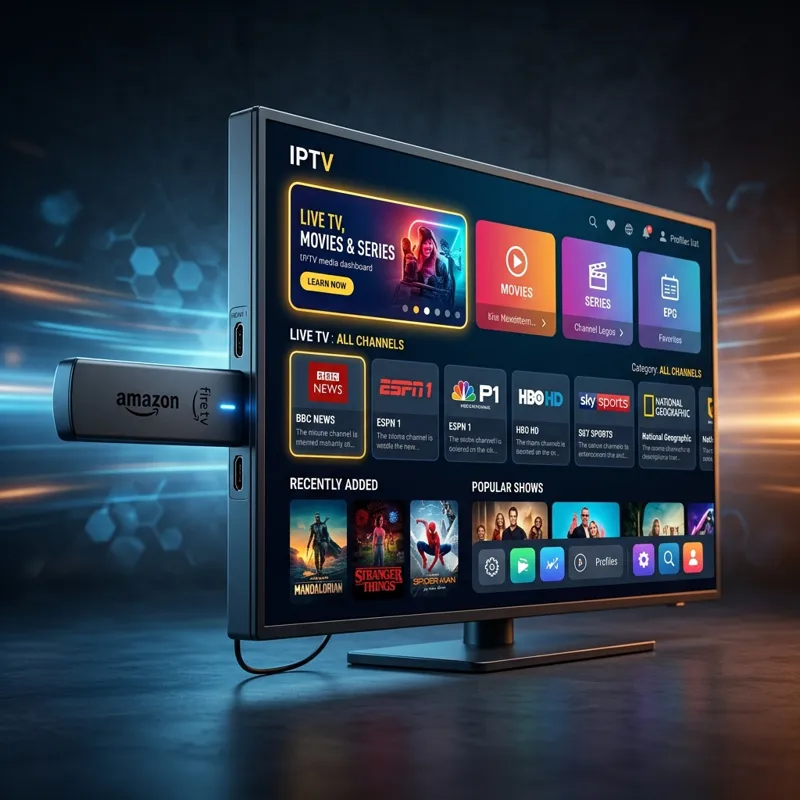
The Amazon Fire TV Stick (Firestick) is the most popular streaming device in the world, thanks to its low price, portability, and powerful hardware. But did you know you can unlock its true potential by installing an IPTV service? By combining the Firestick with a premium IPTV provider, you can cut the cord and stream 20,000+ live TV channels, sports, and 130,000+ movies in stunning 4K Ultra HD resolution.
However, because IPTV players aren't always available directly in the official Amazon App Store, setting it up requires a small process called "sideloading." Don't worry — this is 100% safe and takes less than 5 minutes.
In this guide, we will walk you through the exact step-by-step process of how to install IPTV on Firestick in 2026 using the Downloader app and the popular IPTV Smarters Pro player.
Step 1: Enable Unknown Sources (Developer Options)
Since we will be downloading the IPTV player through a web browser, we need to permit the Firestick to install apps from third-party sources. Follow these steps:
- Turn on your Firestick and go to the Settings gear icon on the home screen.
- Scroll down and click on My Fire TV.
- Click on Developer Options.
(Note: If you don't see Developer Options, go to About, highlight Fire TV Stick, and click it 7 times until it says "No need, you are already a developer.") - Find Install unknown apps (or Apps from Unknown Sources) and turn it ON.
Step 2: Install the Downloader App
Next, we need a helper tool to download our IPTV player files from the web. The easiest and safest tool is called Downloader.
- Go back to the Firestick Home screen and click on the Find (Search) icon.
- Type Downloader in the search bar and click on the orange Downloader icon in the search results.
- Click Download or Get to install the app.
- Once installed, open the Downloader app and click Allow when prompted for storage permissions.
Step 3: Download and Install IPTV Smarters Pro
Now we are ready to install the media player. While there are many options (like TiviMate or XCIPTV), IPTV Smarters Pro is highly recommended for beginners because of its beautiful layout and simplicity.
- Open the Downloader app.
- Highlight the URL box on the home screen, type the Downloader code 250931 (or the direct APK link `https://www.iptvsmarters.com/smarters.apk`), and click Go.
- The app will start downloading the IPTV Smarters Pro installation file (APK) automatically.
- Once the download is complete, click Install.
- After the installation finishes, click Done. You will be prompted to delete the APK file to save storage space on your Firestick. Click Delete and then Delete again to confirm.
Step 4: Configure Your IPTV Credentials
Once you open IPTV Smarters Pro, you will need active service credentials. You can easily get these by ordering a subscription or requesting a free trial from IPTV USA.
- Open the newly installed **IPTV Smarters** app.
- Select **Log in with Xtream Codes API** (this is the fastest and most reliable login method).
- Enter your login details provided by IPTV USA via WhatsApp or email:
- Any Name: e.g., IPTV USA
- Username: (Your custom username)
- Password: (Your secure password)
- Server URL: (Your custom server port URL)
- Click **Add User**. The app will load the channel playlists, VOD categories, and Electronic Program Guide (EPG) in seconds.
📺 Need IPTV Credentials for Firestick?
We offer a 24-hour free trial with all 20,000+ live channels, 130,000+ movies & series, anti-buffering technology, and pure 4K quality. No credit card required. Chat with our support on WhatsApp now!
Troubleshooting & Pro Tips for Firestick Streaming
1. Use a VPN for Streaming Privacy
To prevent your ISP (Internet Service Provider) from throttling your bandwidth or slowing down your video feeds during major sports broadcasts (which they frequently do), we highly recommend using a VPN like ExpressVPN or NordVPN on your Firestick.
2. Clear Cache Regularly
Firesticks have limited storage memory. If you notice buffering or lag, go to Settings > Apps > Manage Installed Applications > IPTV Smarters Pro, and click Clear Cache. Do not click Clear Data, as this will log you out of your account.
🎮 Ready to Unlock Your Amazon Firestick?
Get instant access to 20,000+ channels and 4K movies. Try our service free for 24 hours.
🎁 Start Free Trial Now 💬 Chat with Us on WhatsAppLast updated: July 04, 2026 · ← Back to Blog